Body
Canvas Portfolios gives you a space to collect and showcase your work, reflect on what you've learned, and tell the story of your growth over time. Whether you're documenting a single project or building a portfolio that highlights skills across multiple courses, you can tag your work, add reflections, and share the finished result through a public link, exportable PDF, or directly to LinkedIn.
There are two types of Portfolios: Showcase and Evaluation.
A showcase portfolio you can build yourself; you can add any learning evidence you like.
An evaluation portfolio is assigned by your instructor; they decide what learning evidence you will add.
Notes: Individual attachments uploaded to a Portfolio can be up to 50 MB each. The total combined size of all attachments in a users Portfolios can be up to 1 GB.
Create a Showcase Portfolio
To create a showcase portfolio:
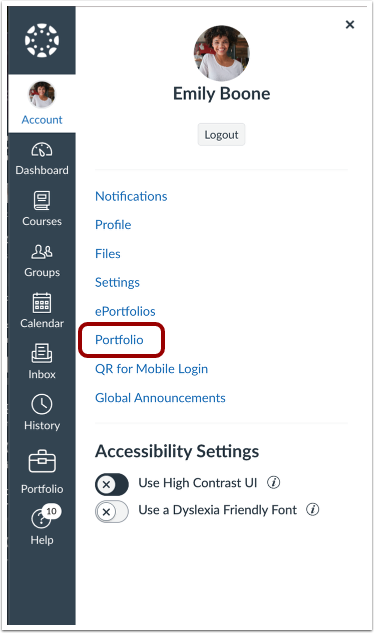
- Click Account in the Canvas global navigation, then Portfolio
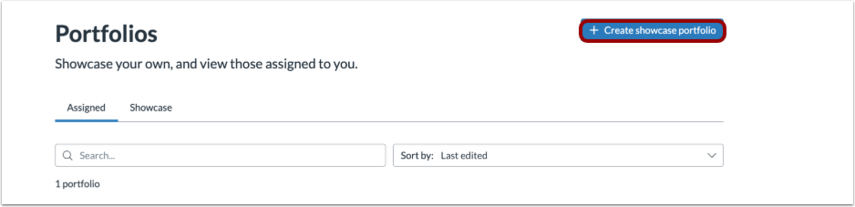
- Click +Create showcase portfolio
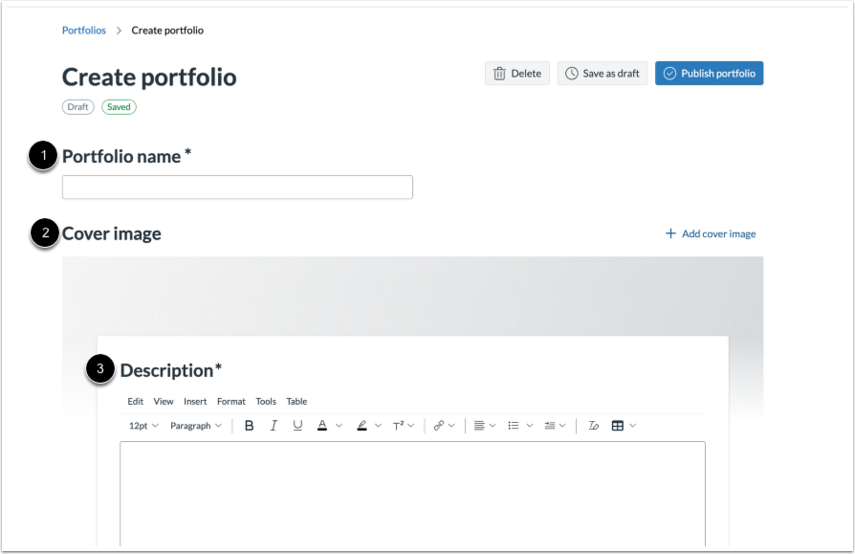
- Add a Portfolio name [1], an optional Cover image [2] and a Description [3].
- To save a portfolio as a draft, click the Save as draft button [1]. Click the Publish portfolio button [2] to to finalize and share your portfolio.

Back to Top
Add Evidence to a Portfolio
To add evidence to a portfolio, access your portfolio and click Edit.
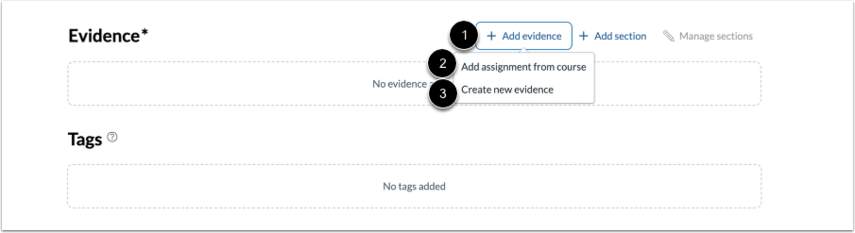
- Click the Add evidence link [1], then choose to Add assignment from course [2] or Create new evidence [3].
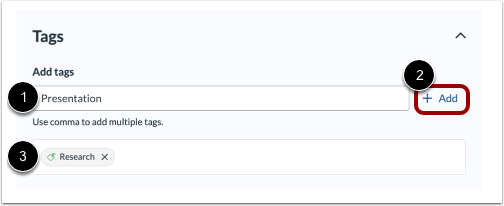
Note: Tags that are added to your evidence will display in the Tags section once the evidence has been added.
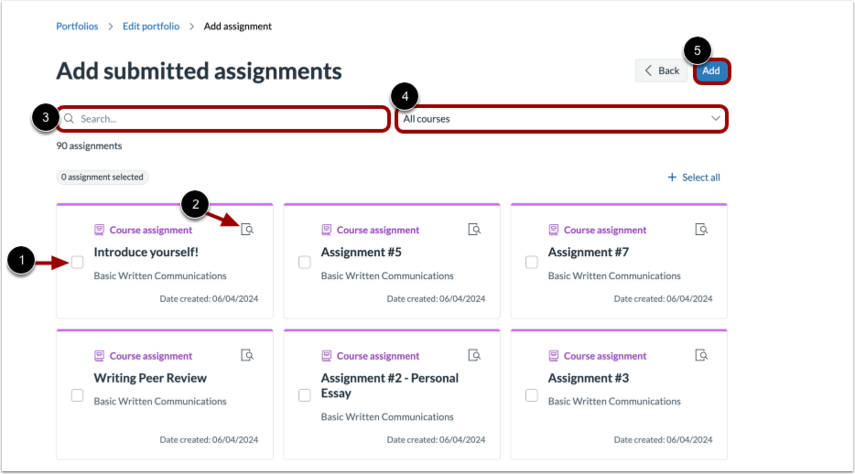
- If adding an assignment:
- To select an assignment to add, click the add assignment checkbox [1].
- To view assignment details, click the review icon [2].
- You can find assignments by typing keywords into the search field [3].
- Select a course from the drop-down menu to filter assignments. [4].
- After selecting all assignments, click Add button [5]
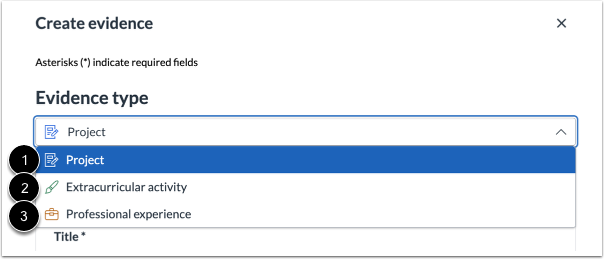
- If creating new evidence, select between a Project. [1], Extracurricular activity [2] or Professional experience [3].
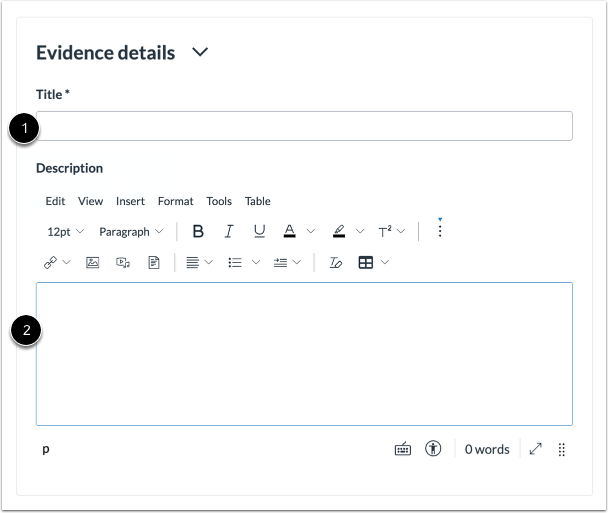
- Add a title [1] and an optional description [2].
- Add optional tags [1], then click the Add link [2]. Added tags display as pills [3].
-
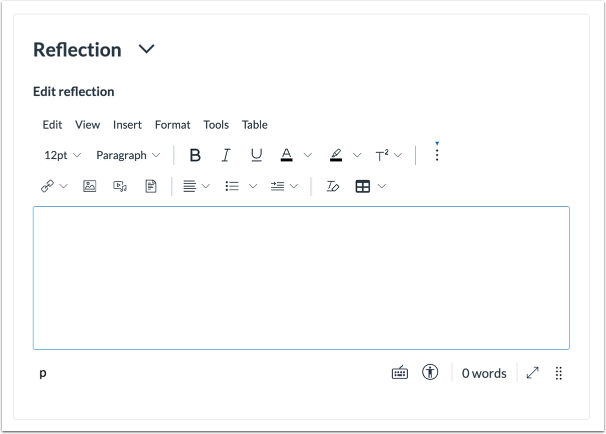
Add a reflection on the added evidence. You can also add image or video files using the Rich Content Editor.
-
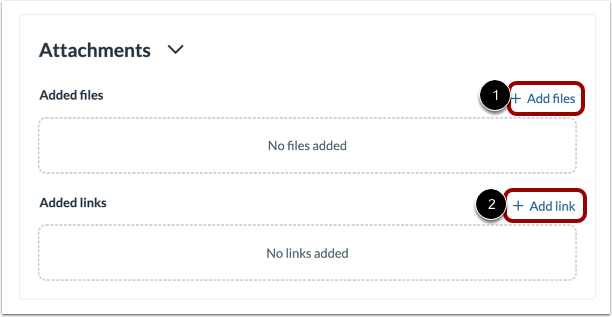
Click the Add files link [1] to upload files, or click Add link [2] to add a URL.
-
Click Create to save the evidence.
Back to Top
Add Sections to a Portfolio
To add sections to a portfolio, access your portfolio and click Edit.
- Click the Add section link [1]. To order or delete sections, click the Manage sections link [2].

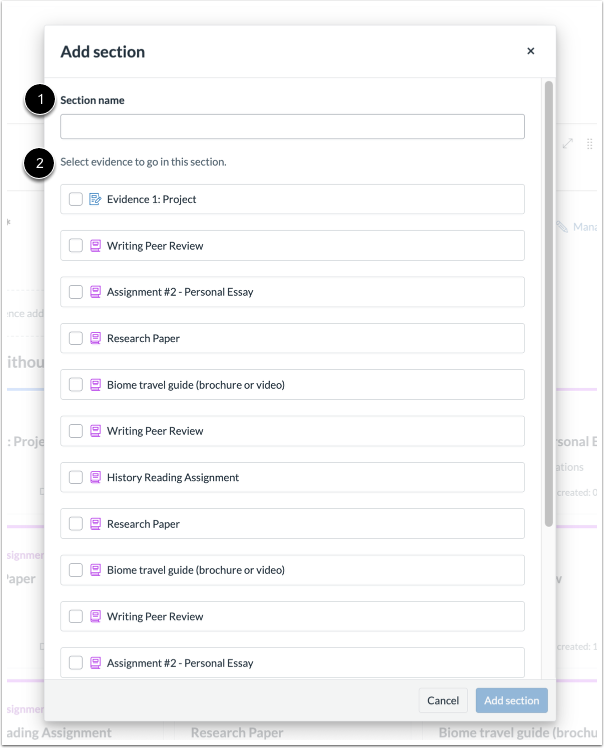
- Add a section name [1] and then select the evidence to go in this section [2].
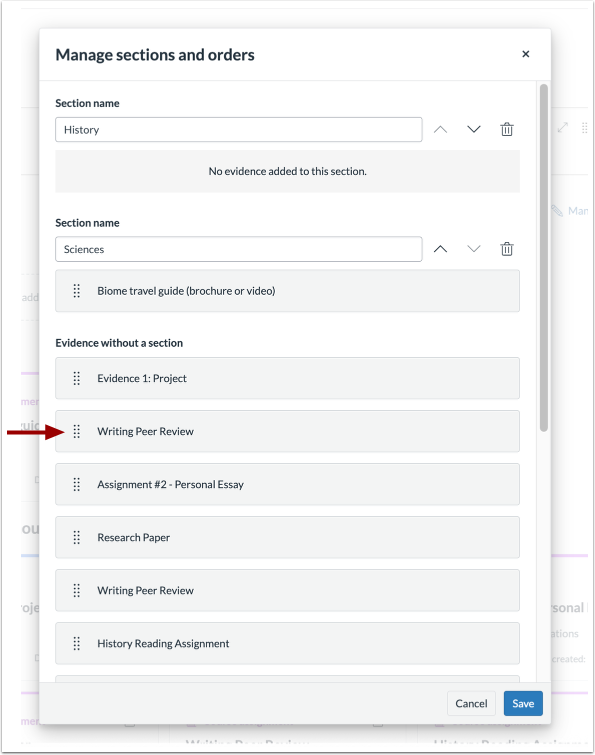
- When Managing sections, drag and drop evidence to move it to the desired section. Evidence can also be reordered within a section using drag and drop.
- Click Save as draft or Publish portfolio to save changes.
Back to Top
Export and Share a Portfolio
Your Portfolio can be exported to a PDF or HTML file, as well as creating a sharing link that anyone can view or post it to LinkedIn.
- Click Account in the Canvas global navigation, then Portfolio
- Select a Portfolio.
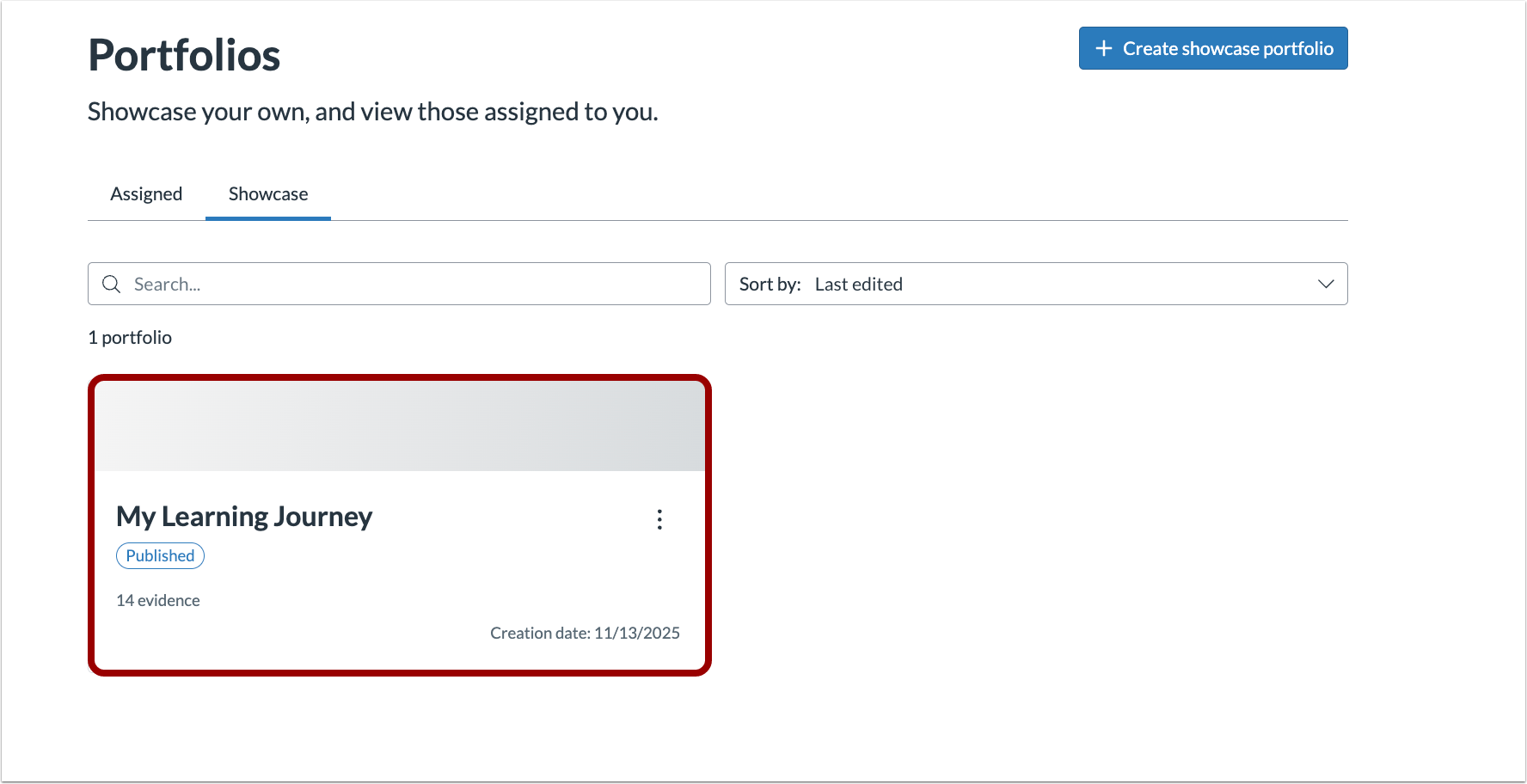
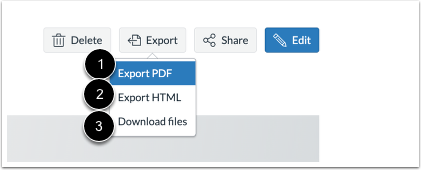
- To export, click the Export button.

- Choose to export your portfolio as a PDF [1], HTML [2] or download files [3].
- To share, click the Share button.

- Toggle on Allow anyone with the link to view. Click Copy to copy the link or Share on LinkedIn.

Back to Top