Instructors can leave feedback for your assignments in three ways:
- Overall submission comments
- Comments left within a rubric
- In-line comments on the document itself
Note: there is not visual indicator for in-line comments, to view them, you must open the assignment and scroll to the bottom of the page.
To view this feedback:
- Access your course.
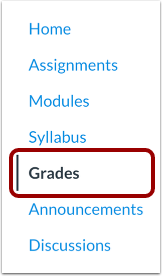
- Click the Grades link.
- All of your course assignments will be listed here and show:
- Assignment Name
- Due date
- Date of submission
- Status (Late, Missing)
- Score (if posted)
- Feedback icons (if posted)
- If Submission comments have been added, you will see a message icon with the number of comments. Click it to view overall comments.

- If there is a rubric attached to the assignment, you will see a Clipboard icon. Click it to view the rubric. Any comments added to the rubric will display under each criterion.

- To view any in-line comments, click the Assignment name and scroll down to the bottom of the page to view your submission.
-
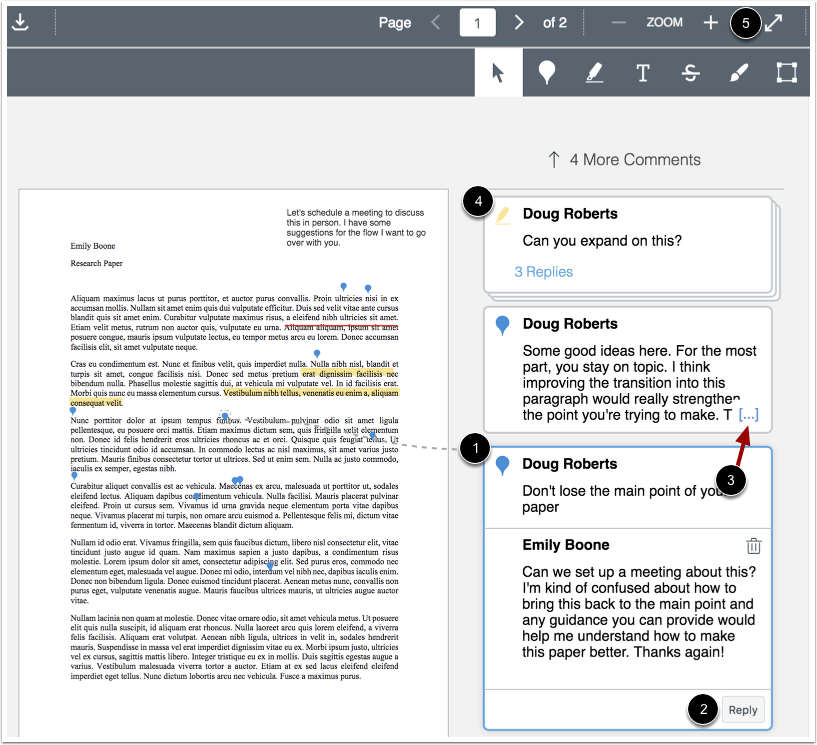
View the annotated comments from your instructor [1].
-
To reply to a comment, click on the comment and click the Reply button [2].
-
When an annotated comment includes multiple content lines, the content box displays an ellipses link. To expand a comment, click the ellipses link [3].
-
To view stacked replies, click the comment to expand all replies [4].
-
To view comments in an expanded view, click the Full Screen icon [5].
- To download a copy of the file with annotations, click the Download button.
