Canvas Portfolios gives students a space to collect and showcase their work, reflect on what they've learned, and tell the story of their growth over time. Whether they're documenting a single project or building a portfolio that highlights skills across multiple courses, students can tag their work, add reflections, and share the finished result through a public link, exportable PDF, or directly to LinkedIn.
There are two types of Portfolios: Showcase and Evaluation.
A showcase portfolio students build themselves, adding any learning evidence they like.
An evaluation portfolio assigned by you, the instructor; you decide what learning evidence students will add.
At this point in time, we don't feel the Evaluation portfolio tool is mature enough to recommend its use. If you want students to create a Portfolio in Canvas, direct them to create their own showcase portfolio.
Notes:
- Instructors can create up to 500 active Evaluation Portfolios, with both published and draft portfolios counting toward this limit.
- Once an Evaluation Portfolio is published, only certain edits are allowed:
- portfolio title and description can be edited
- new courses can be added
- new requirements and sections can be added
- existing requirements cannot be edited or deleted.
- Evaluation Portfolios do not support collaboration. Only the user or instructor who created the Evaluation Portfolio can edit its draft or review evidence within it.
- Individual attachments uploaded to a Portfolio can be up to 50 MB each. The total combined size of all attachments in a users Portfolios can be up to 1 GB.
Create an Evaluation Portfolio
To create an evaluation portfolio:
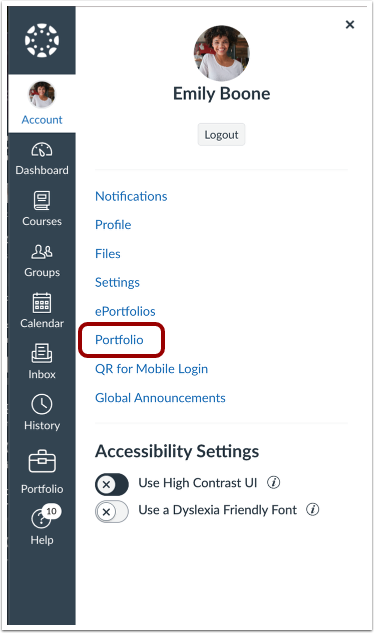
- Click Account in the Canvas global navigation, then Portfolio
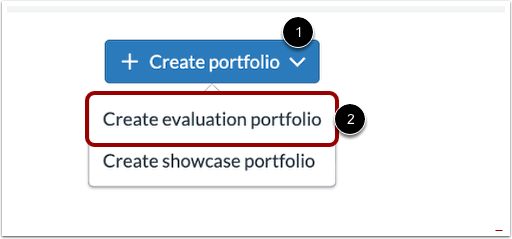
- Click the Create portfolio drop-down menu [1] and select the Create evaluation portfolio option [2].
-
Select one or more courses to which you want to assign a portfolio [1]. Students enrolled in those courses are automatically assigned to the Evaluation Portfolio.
Instructors can select courses from multiple terms [2], allowing assignments from different terms to be included as portfolio requirements. These courses also automatically enroll learners in the portfolio.
Click the Select button [3].

-
Enter a portfolio name [1] and instructions [2]. You can also add a cover image [3].

-
To add evidence requirement to a portfolio, click the Add requirement link [1]. You can either add an assignment from the course [2] or create a new requirement [3].

-
To create a section, click the Add section link [1]. To order or delete sections, click the Manage sections link [2].

-
To add or remove courses in an evaluation portfolio draft, click the Manage courses button.

-
To save a portfolio as a draft, click the Save as draft button [1]. To finalize and share your portfolio, click the Publish portfolio button [2].

-
To confirm publishing, click the Publish portfolio button.

Back to Top
View Student Progress in a Portfolio
- Click Account in the Canvas global navigation, then Portfolio
- Select a Portfolio.

-
From the Learner Dashboard, you can track student progress on their evaluation portfolios.
- View group statistics: See how many students portfolios are Pending Review, In Progress, Completed, or Not Started [1].
- Search and filter: For portfolios with many students, search by student name [2] or filter by portfolio status [3].
- View individual statistics: Click a students name [4] to see their portfolio progress, including how many items are pending review [5] and the portfolio status of each student [6].

Note: On the learner dashboard, assignment progress may not update in real time due to a known limitation. However, instructors can view up-to-date assignment progress when looking at a specific students Portfolio.
Back to Top
Add Feedback to a Student's Portfolio
You can add feedback to items in Evaluation Portfolios to support student learning. As an instructor, you can mark items as Complete, Request Revision, or Not Complete. You can also leave comments on student work to provide guidance and insight.
- Click Account in the Canvas global navigation, then Portfolio
- Select a Portfolio.
- Click the Student's Name you wish to review.
- Click the item you wish to review.

- In the Review section, mark the item as Complete [1], Request revision [2], or Not complete [3], then click the Submit review button [4]. You can also leave a comment [5] and click the Submit comment button [6].

Note: You can leave comments independently of marking evidence as complete or incomplete to provide ongoing feedback. When requesting a revision or marking evidence as not complete, you will always be prompted to include a comment before submitting.
Back to Top